⁉️ Don’t have ACCESS to online ACADEMIC RESOURCES?
Or, you want to use Adobe/G Suite/Office 365 for FREE?
No worries! Whether you have Android/iOS/Windows/Mac OS X
NEXKY has a solution!
No matter where you are, you can get access to tons of online resources and free programs easily with CHULA VPN‼️
Today, NEXKY will show you how to set up and activate the VPN within 2 Checkpoints!
(**Instructions below are for Macbook users. Manuals for Windows, Android, iOS, etc. are in the link.)

🏁 Checkpoint 1 : Set Up VPN
- Visit https://bit.ly/3zNcMYB to download the program.
- Open the file and select ‘AnyConnect.pkg’.
- Keep pressing ‘Continue’ and ‘Agree’.
- Press ‘Install’ and fill in your computer password.
Once finished, the screen will show ‘The installation was successful.’ Close the tab and you’re done!
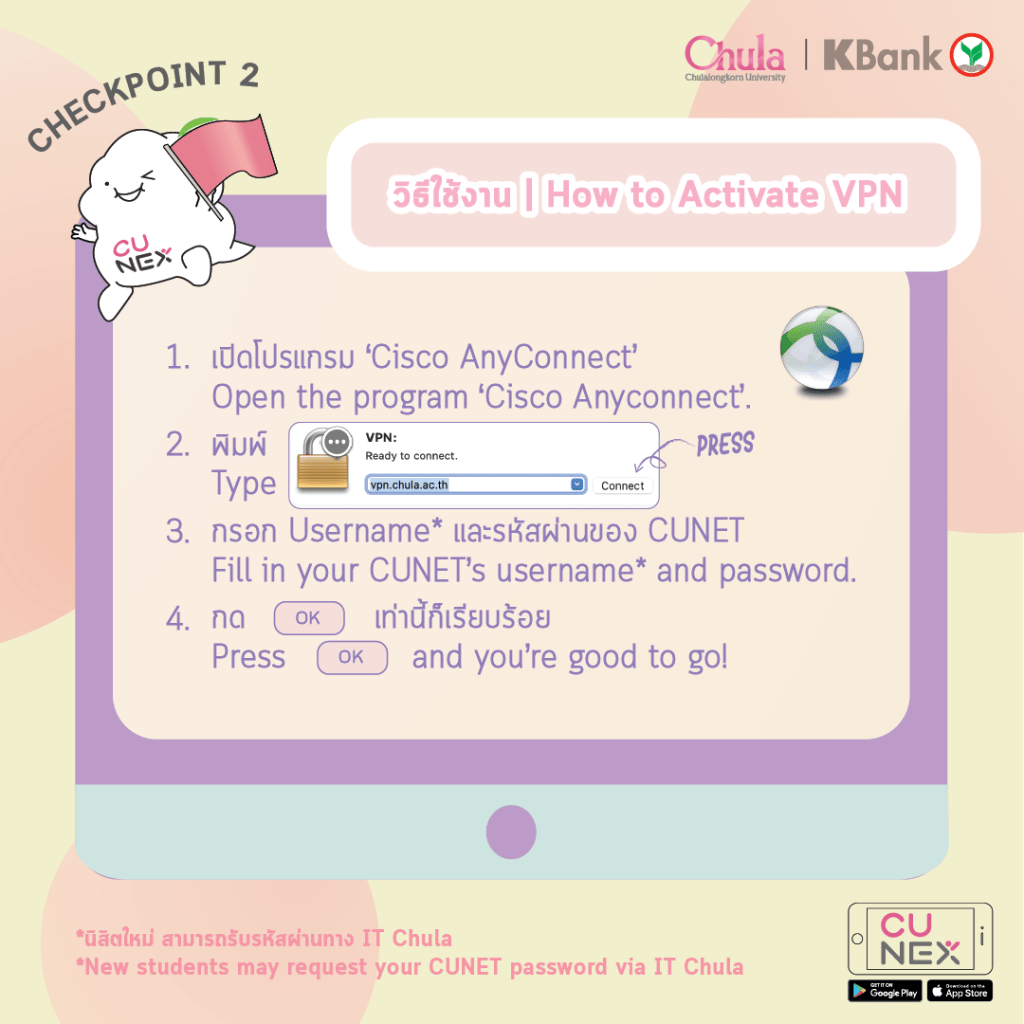
🏁 Checkpoint 2 : Let’s see how we can activate the VPN.
- Open the program ‘Cisco AnyConnect’.
- Type ‘vpn.chula.ac.th’ and press ‘Connect’.
- Fill in your CUNET’s username* and password.
- Press ‘OK’ and you’re good to go!
To end the session, simply press ‘Disconnect’!
With this, you now gain access to various websites for academic papers.
🌟 Plus! You can also download Adobe and other programs for FREE from IT Chula >> https://bit.ly/3t1u0Pf
iOS and Android users can also download the VPN!
For more info >> https://bit.ly/3zNcMYB
.
.
*Acad. Year 2019 students onward, the username is your 10-digit student ID no.
*New students may request your CUNET password here >> https://bit.ly/2V4HrRX
 CU NEX Popular Stories